...
  • Home
  • Shell
    • Emacs
    • Perl
    • screen
    • sed
  • Ubuntu
    • VNC
  • Web Development
    • Javascript
    • Joomla
    • MySQL
    • osTicket
  • Windows
    • Gimp
KEEP IN TOUCH

Most Popular

  • osTickets > Reports v4.2 (18056)
  • HTPC > Setup Windows 7 as a Media Center with XBMC (10962)
  • osTicket > View headers for original email message (4174)
  • WebDev > Allow PHP in Wordpress Widgets (3615)
  • Web Dev > Password protect webpage(s) with PHP & LDAP (2475)

Posts in category Ubuntu

vmWare > Boot to fullscreen VM after host boots.

Nov02
2011
Leave a Comment Written by Scott Rowley

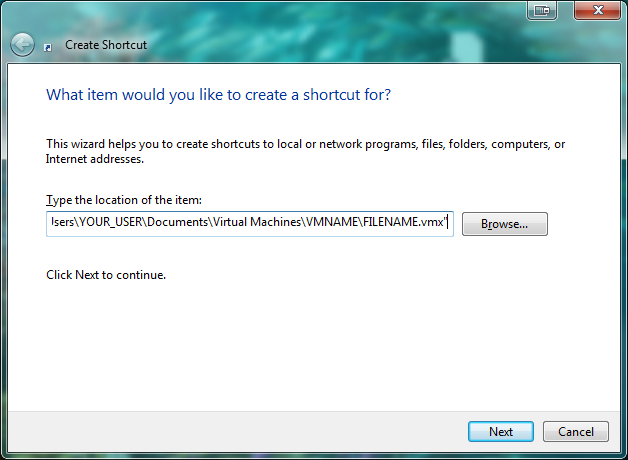
Create a shortcut with the following TARGET.

“C:\Program Files\VMware\VMware Workstation\vmware.exe” -X “C:\Users\YOUR_USER\Documents\Virtual Machines\VMNAME\FILENAME.vmx”
New Shortcut

The -X opens in Full screen (before you go looking, I’ll save you the trouble – there is no dual screen option as of the writing of this article.)
Replace “C:\Users\YOUR_USER\Documents\Virtual Machines\VMNAME\FILENAME.vmx” with your vmx file location.
The quotes are required.

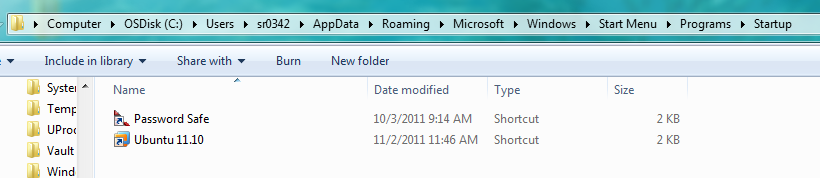
Put the shortcut into the Windows Startup folder
Windows Startup Folder

Voila!
Ubuntu

ajax loader
Posted in vmWare, Windows - Tagged fullscreen, host, vmware, workstation boot
SHARE THIS Twitter Facebook Delicious StumbleUpon E-mail

Media > Shoutcast ‘No such file or directory’

Jul29
2011
Leave a Comment Written by Scott Rowley

You’ve got a 64-bit operating system and you are trying to run the 32-bit variant of Shoutcast.

32-bit Shoutcast on 64-bit OS

# ./sc_serv
-bash: ./sc_serv: No such file or directory

For CentOS, RedHat and Similar:

yum install lib32-glib

For Debian/Ubuntu:

apt-get install ia32-libs
# ./sc_serv
*******************************************************************************
** SHOUTcast Distributed Network Audio Server
** Copyright (C) 1998-2004 Nullsoft, Inc.  All Rights Reserved.
** Use "sc_serv filename.ini" to specify an ini file.
*******************************************************************************
ajax loader
Tagged apt-get, audio, cast, directory, file, ia32-libs, install, media, no, shout, shoutcast, such, yum
SHARE THIS Twitter Facebook Delicious StumbleUpon E-mail

Linux > Aliases

Jun08
2011
1 Comment Written by Scott Rowley

Aliases can be a great way to more easily remember an oddball command or to shorten a long command. Aliases are stored in your .profile or within a include file referenced from .profile.

A couple of quick examples before showing how to set them up:
READ MORE »

ajax loader
Posted in BASH - Tagged alias, basic, conditional, ggrep, grep, if, include, linux, profile, reload, solaris, ubuntu, unix, whois
SHARE THIS Twitter Facebook Delicious StumbleUpon E-mail

Linux > Command line shortcuts

Jun06
2011
Leave a Comment Written by Scott Rowley

Another starter article to grow with my needs, we’ll start off with the shebang, or bang…or simply “!”. The first two commands I believe are the most useful and could be commonly used. Note that some of these can be a bit difficult to remember, we’ll also go over making aliases so we can use something a little easier to remember in a later article.
READ MORE »

ajax loader
Posted in BASH - Tagged !, bang, command, date, exclamation, execute, home, last, previous, print, prior, shebang, shortcut, tilde
SHARE THIS Twitter Facebook Delicious StumbleUpon E-mail

Web Dev > Password protect webpage(s) with PHP & LDAP

May27
2011
7 Comments Written by Scott Rowley

The title says it all, this will allow you to restrict the access to a page or pages running php with access to LDAP. I’ve used this a few times for some internal things we don’t want everyone getting access to or similar scenarios. As always if it works for you, please leave a comment and if it doesn’t please leave a question and I’ll see what I can do to help you out.

Enable LDAP

First thing you’ll need to do is to install ldap for php & enable the needed mods, ldap.load & authnz_ldap.load

On Ubuntu:

apt-get update
apt-get install php5-ldap
cd /etc/apache2/mods-enabled
ln -s ../mods-available/ldap.load ldap.load
ln -s ../mods-available/authnz_ldap.load authnz_ldap.load
apache2ctl graceful

READ MORE »

ajax loader
Posted in Web Development - Tagged apache, apache2ctl, authnz_ldap.load, graceful, ldap, ldap.load, login, mods-available, mods-enabled, php, php5-ldap, restricted, secure, security
SHARE THIS Twitter Facebook Delicious StumbleUpon E-mail

Web Dev > Password protect apache directory with LDAP & .htaccess

Apr06
2011
Leave a Comment Written by Scott Rowley

First thing you’ll need to do is to enable the needed mods, ldap.load & authnz_ldap.load These come preloaded with most linux, you’ll just need to enable them.
On Ubuntu:

Enable LDAP Authentication

cd /etc/apache2/mods-enabled
ln -s ../mods-available/ldap.load ldap.load
ln -s ../mods-available/authnz_ldap.load authnz_ldap.load
apache2ctl graceful

.htaccess

You should now be able to implement the following wherever desired:
Example .htaccess file

Order deny,allow
Deny from All
AuthName "Restricted Page - login with LDAP credentials"
AuthType Basic
AuthBasicProvider ldap
AuthzLDAPAuthoritative on
AuthLDAPUrl ldap://ldap.example.com/ou=admins,o=LDAPROOT?adminUser
AuthLDAPGroupAttribute memberUid
AuthLDAPGroupAttributeIsDN off
Require valid-user
Satisfy any

<Files .htaccess>
order allow,deny
deny from all
</Files>

Note that ‘?adminUser’ on the end of the AuthLDAPUrl line is whatever object you use in your configuration.

Apache Config

/etc/apache2/sites-available/default
Make sure the following is set (the default is AllowOverride AuthConfig)

AllowOverride All
ajax loader
Posted in Web Development - Tagged htaccess, ldap, password, protect, security, ubuntu
SHARE THIS Twitter Facebook Delicious StumbleUpon E-mail

Web Dev > Force users from http to https

Apr05
2011
Leave a Comment Written by Scott Rowley

Tested and verified working for *nix servers:

Add the following to your .htaccess file in the root of your website:

Options +FollowSymlinks
RewriteEngine on
RewriteCond %{SERVER_PORT} =80
RewriteRule ^(.*) https://%{SERVER_NAME}%{REQUEST_URI}

I don’t work with IIS so check the following link for information on setting up the redirect on IIS servers:
http://www.sslshopper.com/iis7-redirect-http-to-https.html

ajax loader
Posted in Web Development, Windows - Tagged apache, follow, force, htaccess, http, https, IIS, nix, options, rewrite, server, symlinks, user
SHARE THIS Twitter Facebook Delicious StumbleUpon E-mail

Ubuntu 10.10 VNC Login Screen

Apr04
2011
Leave a Comment Written by Scott Rowley

This procedure starts from a fresh install of Ubuntu-Desktop-10.10. This will allow for a graphical interface where none otherwise exists (such as is needed with remote desktop connection). Bear in mind that with VNC you will not have any sound as its not capable (at least not yet)

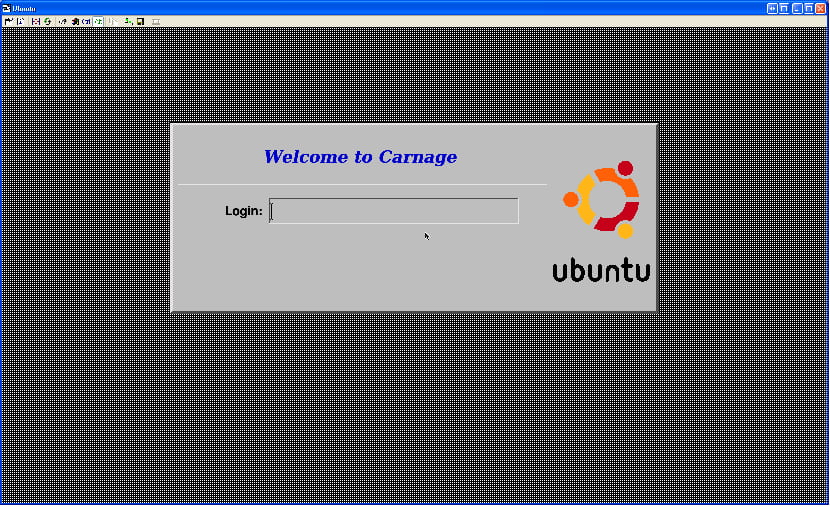
Login Screen Desktop

install xdm, vnc4server, and xinetd.

sudo apt-get install xdm vnc4server xinetd

When asked during installation what the default display manager should be, keep the setting as gdm.

Configure xdm to be able to answer XDMCP requests, comment out the following line in /etc/X11/xdm/xdm-config:

! SECURITY: do not listen for XDMCP or Chooser requests
! Comment out this line if you want to manage X terminals with xdm
!DisplayManager.requestPort:    0

Configure XDM to answer XDMCP requests from localhost, and to listen to just localhost by adding the following lines to /etc/X11/xdm/Xaccess:

localhost
LISTEN localhost

Configure XDM to not bring up a physical display by commenting out the following line in /etc/X11/xdm/Xservers:

#:0 local /usr/bin/X :0 vt7 -nolisten tcp

Configure the startup script to allow XDM to start despite gdm taking care of the screen by removing /etc/X11/default-display-manager:

sudo mv /etc/X11/default-display-manager /etc/X11/default-display-manager.original
emacs /etc/X11/default-display-manager (to contain ONLY the following):
/usr/bin/xdm

Add the VNC port definition to /etc/services if it has not already been added:

vnc 5900/tcp

Configure the VNC incoming port by creating /etc/xinetd.d/vnc:

service vnc
{
     only_from = localhost 192.168.0.1/24
     disable = no
     id = vnc
     socket_type = stream
     protocol = tcp
     wait = no
     user = nobody
     server = /usr/bin/Xvnc4
    server_args = -geometry 1650x950 -inetd -query localhost -once -SecurityTypes=None -pn -fp /usr/share/fonts/X11/misc/,/usr/share/fonts/X11/75dpi/,/usr/share/fonts/X11/100dpi/ -desktop Ubuntu
     log_on_failure += USERID
}

Feel free to modify these options (such as your “only_from” to be your actual network or IP – and geometry to be your desired resolution)

After all these pieces are done, restart the services to load the new configurations:

sudo /etc/init.d/xdm restart
sudo /etc/init.d/xinetd restart

Now you should be able to use VNC to get a login screen.

There is a problem with gnome in this setup where it has a keyboard shortcut assigned to ‘d’, which can be fixed by going into System -> Preferences -> Keyboard Shortcuts and disabling, or reassigning the “Hide all normal windows and set focus to the desktop” shortcut key (source). This may happen because the default key binding is Mod4+D, and there is no Mod4 modifier key on the VNC connection.

Enabling copy/paste
For whatever reason, copy/paste (between host and client) does not work out of the gate here (in my experience) with either tightVNC or realVNC. In order to enable this functionality you will need to do the following:

Enable for THIS session only
Open terminal window (on your Ubuntu box)

su - root (not sudo bash!)
vncconfig &
exit

Note: For some reason the above didn’t work for my co-worker – we then just used the “enable across reboots” below and that worked fine for him. The error message he had received was “No protocol specified”.

Enable across reboots

emacs /etc/X11/Xsession

Just below the PROGNAME=Xsession line add the following:

# Enable copy/paste with vnc sessions
/usr/bin/vncconfig &

If everything worked then you should now have a box on the screen with a few options. You can just minimize this.
This is a moderately modified HowTo of an original article [Sarah Happy]

ajax loader
Posted in VNC
SHARE THIS Twitter Facebook Delicious StumbleUpon E-mail

Be Heard!

Authors needed! Feel like sharing your tech wisdom with the world? We are looking to expand our writer base and would love to hear from you. We need articles on any relevant technology/software/media/howto/etc (Well...lets at least hold to the legal stuff ;)

Just email scott (at) sudobash (dot) net

Corrections? Questions? Comments?

Find an error?
Everything work out great for you?
Have some feedback?
Like to see something added to the article?

PLEASE leave us a comment after the article and let us know how we are doing, or if something needs corrected, improved or clarified.

Thank you!
- The Management

Sudo Bash Member sites

Des Moines, Iowa Karate Classes
Iowa MMA Tournaments
Iowa SAR
Ooo-er
5point Studios Tattoo & Piercing

Meta

  • Log in
  • Entries RSS
  • Comments RSS
  • WordPress.org

RSS HowToGeek

  • Week in Geek: Aero Glass Feature will be Removed from Windows 8
  • How to Speed Up Web Browsing with Search & Bookmark Keywords
  • Geek Trivia: Pagers Were First Developed To Assist Which Professionals?
  • The Best Tips and Tricks for Using Email Efficiently
  • Desktop Fun: Starry Skies Wallpaper Collection Series 2

RSS TheGeekStuff

  • UNIX / Linux Processes: C fork() Function
  • How to Calculate IP Header Checksum (With an Example)
  • How to Encrypt Your Bash Shell Script on Linux Using SHC
  • Intro to DOCSIS Architecture, CM CMTS Protocol for Cable Modems
  • Ettercap Tutorial: DNS Spoofing & ARP Poisoning Examples

RSS LifeHacker

  • DIY Maple-Flavored Pancake Syrup [Breakfast]
  • This Week's Top Downloads [Download Roundup]
  • Make Mini Dutch Baby Pancakes in a Muffin Tin [Breakfast]
  • Pour Vinegar Down Your Drain Every Three Months to Keep Clogs Away [Video]
  • Use the Jelly Pocket Method for a Better Drip-Free PB&J [Food Hacks]

EvoLve theme by Blogatize  •  Powered by WordPress Sudo Bash
By Geeks - For Geeks

Back to Top